Scratch
archived forums
#1 2009-09-02 13:50:10
Cutting up a Sprite Sheet
Note: You will need Photoshop to do this. I don't think you can do it with GIMP, but I will invesitage.
This is probably one of the easiest methods I know of splitting a Sprite Sheet up to use in Scratch. We all know that it can be really annoying having to cut up a sprite sheet in scratch because you have to get the costume you want, then cut it, then position it etc. Well you don't need to do this anymore, with help from the Slice tool in Photoshop.
Follow these simple steps:
So we have our sprite sheet. This is quite a good sprite sheet as it has all the costumes we want, and it's very good quality. If we were to cut this up in Scratch it would take ages. Save the sprite sheet.
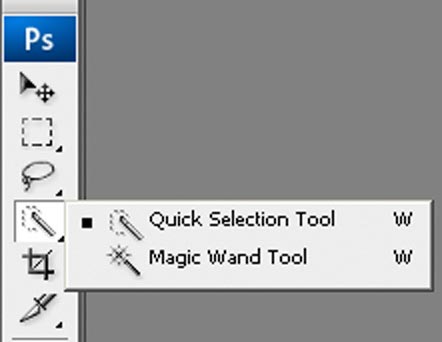
Open up Photoshop and open your sprite sheet. The first thing you want to do is to get rid of the background colour. The best way to do this is to take the 'Magic Wand' tool and set it to the following settings:
Tolerance: 1
Contiguous: On
This will make it so that the magic wand only selects the colour that is exactly the one you select, and it will look over the whole sheet for that colour and not just stop when it reaches a different one.
Click the background colour and it should select all of it from the background. Press delete. The background should now be transparent.
Next, decide which costumes you want from the sheet. In this example, I am going to take the costumes of Mario standing, walking and jumping. This is four costumes.
Take the Slice Tool and zoom in so that you can see the costumes you want clearly; 400% is normally a good amount.
Position the screen on the first costume you want and click and drag from one corner of the costume to the other with the slice tool. If you don't select the whole sprite first time, use the little boxes that appear along the sides to make it bigger/smaller. It should then look like this:
As you can see, the box surrounds the whole costume. Then do this with the other costumes you want:
This bit is optional; it just makes it easier to recognise your costumes later on.Once you've selected all of them, select the Slice Select Tool. Double click inside the box which surrounds your first costume. A menu will appear. In the name section, type a name for that costume which describes it. In this case, Mario Standing:
Press OK. Do this for the rest of the costumes, giving them their individual names. Then go to File>Save for Web and Devices. Another menu should appear giving you information about the image. The costumes you want should be normal, while the rest of the canvas is fainter. While holding down Shift, click on the costumes that you want to save. They should now have a brown box surrounding them.
Go to save, and then at the bottom it should say Save as Type. Click the arrow and select Image Only (*.png). Also, where it says Slices: select Selected Slices. Save it where you want, like the desktop. A folder should appear where you saved it. Open the folder and you should see the costumes.
Open up Scratch. In the folder, select all of the costumes and drag them into Scratch, onto a ready made sprite. Scratch will add these to the costume of that sprite. They will transparant, meaning you don't need to get rid of the background, they will be positioned correctly and they will be cut.
This is a very simple method, and I hope you understood everything.  If you think I need to change anything then please say.
Thanks.
Last edited by Mozaz (2009-09-02 14:16:29)

Offline
#2 2009-09-02 13:55:54
Re: Cutting up a Sprite Sheet
It's possible to make it in GIMP too, there are 2 tools fit for that:
Blurred Selection (Or Magic Wand)
Color Selection
Just set tolerance to 1, and it will select only color exactly like the one you've selected.
Converting my Scratch projects to Python!
Offline
#3 2009-09-02 14:17:07
Re: Cutting up a Sprite Sheet
filo5 wrote:
It's possible to make it in GIMP too, there are 2 tools fit for that:
Blurred Selection (Or Magic Wand)
Color Selection
Just set tolerance to 1, and it will select only color exactly like the one you've selected.
Sorry, you must of read before I finished. That was only half of it. 
Offline
#8 2009-09-10 17:00:21
- billyedward
- Scratcher
- Registered: 2008-01-03
- Posts: 500+
Re: Cutting up a Sprite Sheet
Very neat, a real timesaver.
Maybe I should write a program to do this, so you don't need to shell out hundreds for photoshop.
"I'd love to change the world, but they haven't released the source code yet."
Check out the latest version of Streak --> http://billy.scienceontheweb.net/Streak
Offline
#10 2009-09-13 14:16:15
Re: Cutting up a Sprite Sheet
I have photoshop but I never use it for sprite sheets. I always use scratch for cutting up sprite sheets.
There is a good tutorial for cutting up sprite sheets using scratch @ http://scratch.mit.edu/forums/viewtopic.php?id=13743
Hi, I am Archmage coder extraordinaire. I do Scratch,pascal,java,php,html, AS2 and AS3. Leave me a message if you want coding advice. Also check out my personal website, lots of good stuff about web development, Flash, and Scratch (v1 and v2) !
Offline
#11 2009-09-13 15:17:18
Re: Cutting up a Sprite Sheet
archmage wrote:
I have photoshop but I never use it for sprite sheets. I always use scratch for cutting up sprite sheets.
There is a good tutorial for cutting up sprite sheets using scratch @ http://scratch.mit.edu/forums/viewtopic.php?id=13743
I wrote that guide aswell  This method of cutting up sheets is much better for cutting up larger sheets, as you don't have to keep copying and cutting in Scratch when you can just cut on one sheet.
Offline



#14 2009-09-18 21:42:09
- Jamohyperturbopro
- Scratcher
- Registered: 2009-06-25
- Posts: 8
Re: Cutting up a Sprite Sheet
there is an application for separating tiles here: http://www.mfgg.net/index.php?act=resdb¶m=02&c=6&id=8921
it comes with 2 apps one for separating sprite sheets and one for building them. The application is called Splitter and the sheet builder Assembler
Offline
#15 2009-10-01 12:32:52
Re: Cutting up a Sprite Sheet
Jamohyperturbopro wrote:
there is an application for separating tiles here: http://www.mfgg.net/index.php?act=resdb¶m=02&c=6&id=8921
it comes with 2 apps one for separating sprite sheets and one for building them. The application is called Splitter and the sheet builder Assembler
Cool
Offline
#16 2009-10-02 00:15:33
Re: Cutting up a Sprite Sheet
Why hasn't anyone stickied this yet? The information is clear, and it even has illustrations!
I fall: It's a tragedy. You fall: It's comedy.
Hmph enjoy your fall - I get a lovely spring... without pans of new leaves.
Offline
#17 2009-10-02 01:40:39
- deatheater
- Scratcher
- Registered: 2008-04-11
- Posts: 1000+
Re: Cutting up a Sprite Sheet
I do my sprite cutting in microsoft paint
Offline